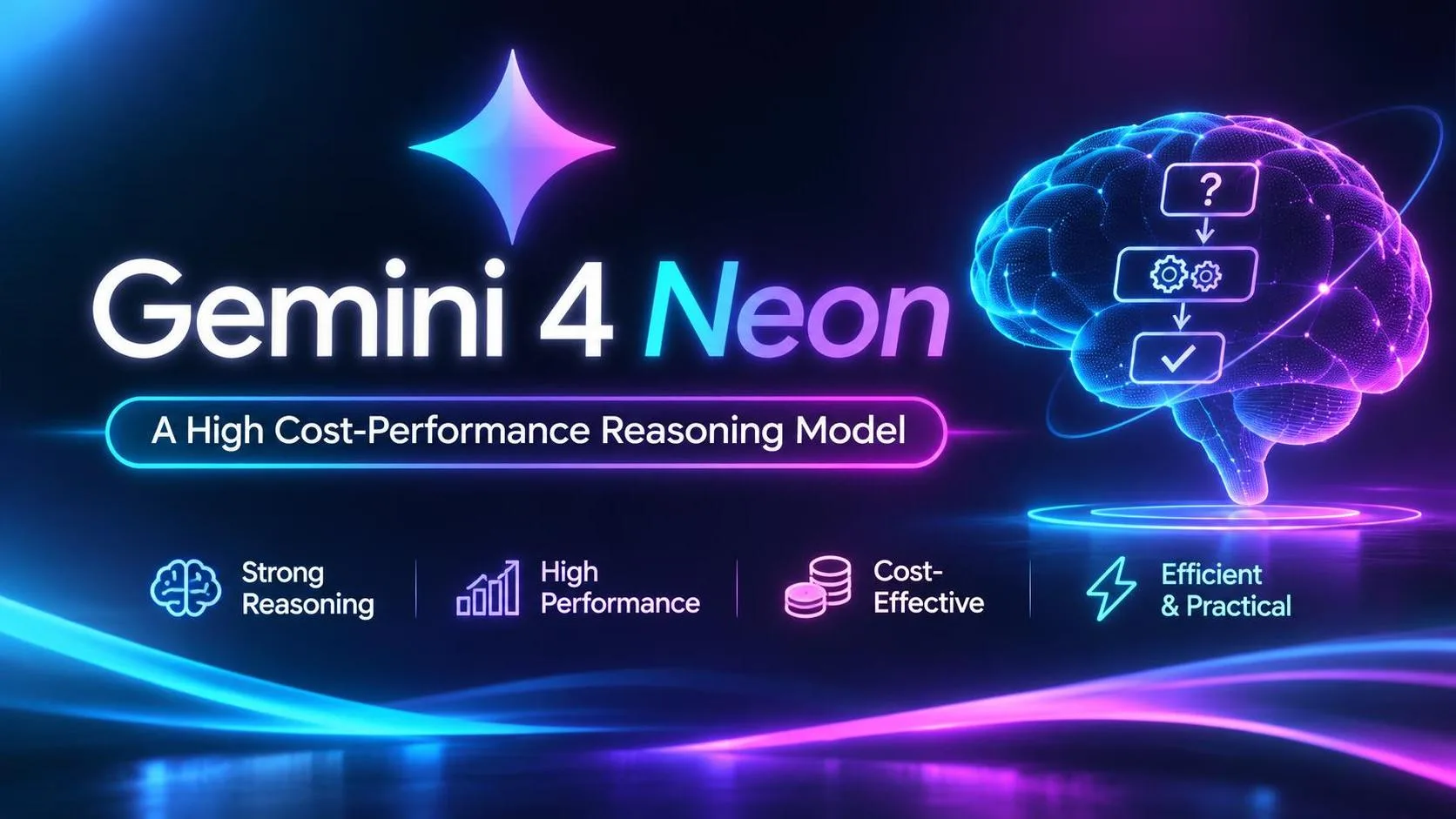
If you’re newer to AI and feel overwhelmed reading headlines about “model upgrades,” “#1 on the leaderboard,” and “maxed-out reasoning,” take a breath. Today we’re translating the heavy jargon into plain English and looking at what Gemini 4 Neon—just released by Google on November 18, 2026—is actually all about.
You can picture AI models like different teammates in a company:
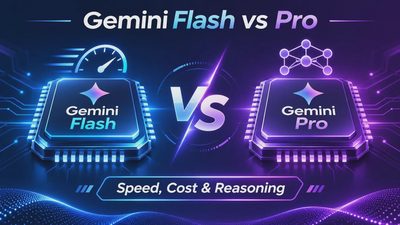
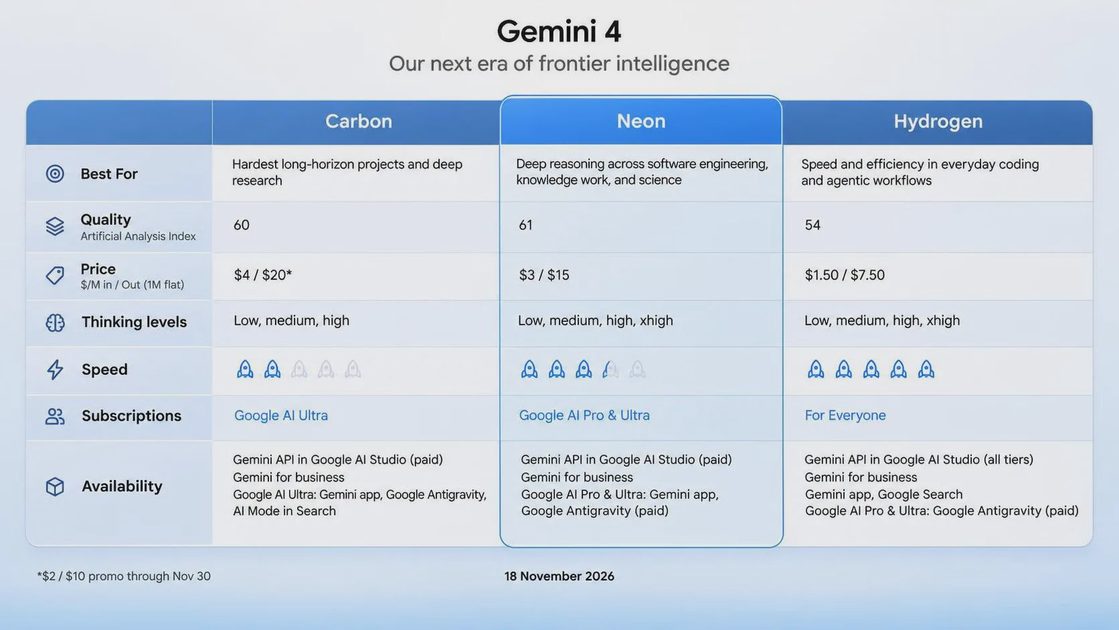
Hydrogen is like the fast-reacting “everyday helper”—great for quick chats, simple Q&A, speed, and keeping costs low.
Carbon is like the “heavy-duty specialist” you call in for tough, time-consuming, high-complexity projects.
And Gemini 4 Neon, which just arrived, is like the “fast, sharp, no-fluff all-rounder”—it can handle deep analysis and get real work done efficiently, while beating earlier models on speed and cost for plenty of complex tasks.
Table of Contents
In Plain English: What Can Gemini 4 Neon Actually Do for Us?
Report Card & Hard Numbers: How Strong Is It Really?
How to Use the API: Minimal Working Code for Beginners
Hands-On Testing & Billing Breakdown: Why “No Free Tier” Deserves a Closer Look
Practical Tips for Beginners and Builders

1. In Plain English: What Can Gemini 4 Neon Actually Do for Us?
Plenty of people think AI is just for chatting or drafting essays, but Gemini 4 Neon puts its biggest focus on coding, analysis, reading complex information, and scientific or specialist work. A few practical highlights stand out right away:
More reliable coding and sharper bug fixes: It is strong at multi-file debugging and code refactoring, makes more accurate edits, and has a very low rate of “cutting corners” or taking shortcuts on coding tests (2.45%), along with less tendency to make up nonexistent tools or test results.
Can “read” super-complex spreadsheets and charts: It takes text, images, video, and audio inputs, and handles huge contexts (a unified context window of up to 1 million tokens; standard synchronous output caps at 64K tokens, while background long-decoding reaches up to 1 million tokens). Google even showcased an example where, inside Google Antigravity, a swarm of Neon agents used a single image to generate a 100,000-cell Google Sheet powered by more than 500,000 live formulas—delivering edge detection, 3D depth mapping, and six interactive lighting modes.
Helps tackle annoying everyday and work chores: For example, it can dig through a stack of bills to explain why your utility bill suddenly spiked, or cross-check multiple receipts and documents to help prep refund requests while saving time and usage limits.
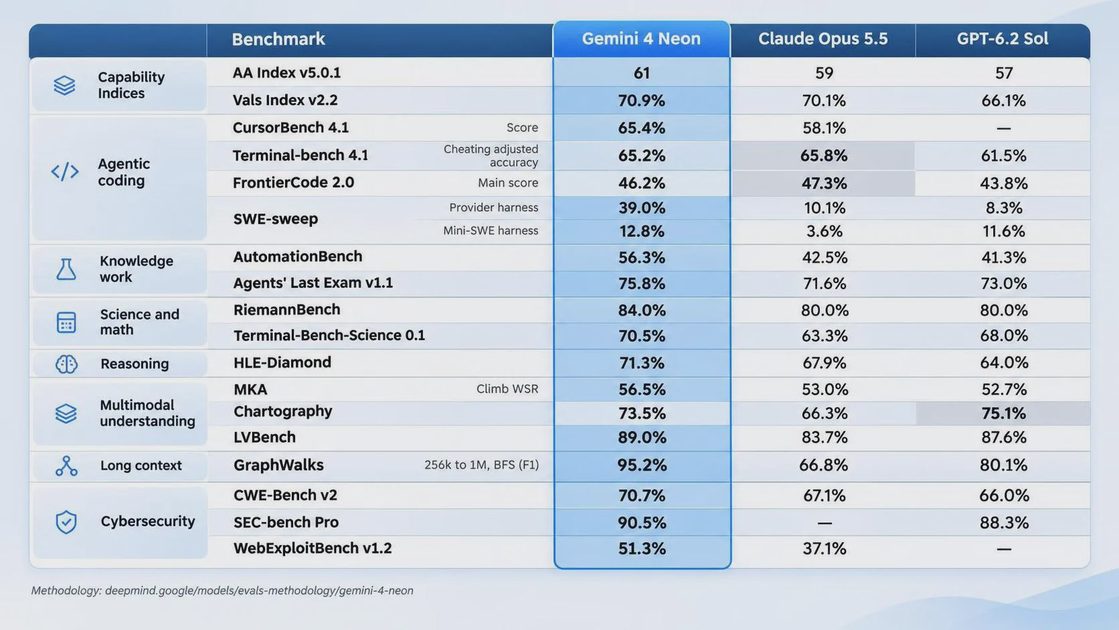
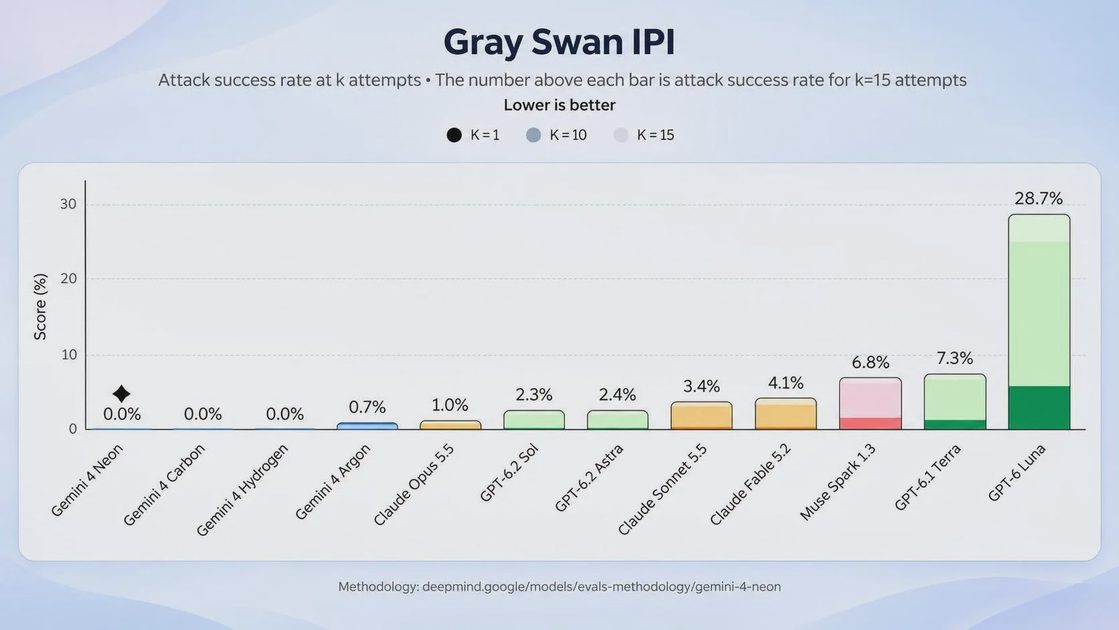
Standout cybersecurity and defense performance: In security evaluations, it catches subtle vulnerabilities that other models miss, hits frontier performance on ExploitGym using half the tokens of Carbon, scores 70.7% on CWE-bench v2 vulnerability patching (3.4% higher than Carbon), and achieves a 0.0% attack success rate on Gray Swan’s benchmark when paired with highest thinking and live guardrails.
2. Report Card & Hard Numbers: How Strong Is It Really?
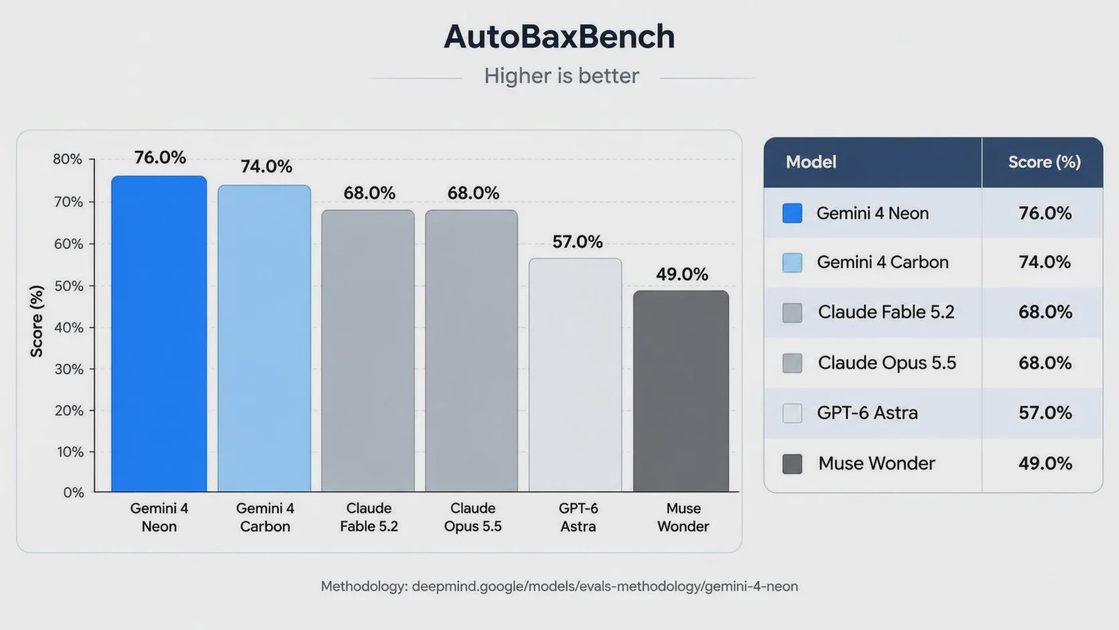
Talk is cheap, so let’s lay out the numbers from independent evaluators and official disclosures so you can see where it sits (keep in mind that test setups and “thinking level” settings shift scores across benchmarks):
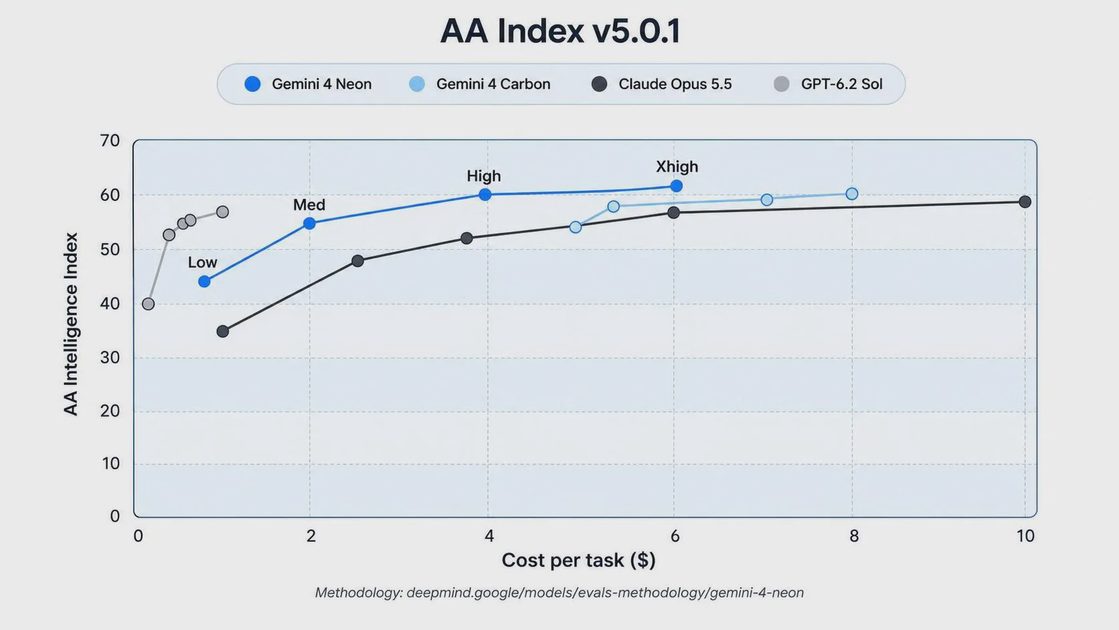
Overall Intelligence Leaderboards: On the Artificial Analysis Intelligence Index (v5.0.1), Neon scores 61 at
xhighthinking (above Carbon athighwith 60, and above Hydrogen atxhighwith 54), ranking #3 overall behind larger, slower models. On the Vals Index, it hits 70.87%, ranking #2 out of 42 models.Coding & Agent Capabilities: It ranks #1 overall on the Artificial Analysis Coding Agent Index (58.6), scores 65.2% on Terminal-Bench 4.1, 46.2% on FrontierCode 2.0 (default
highsetting), and shows a strong lead on CursorBench 4.1. That said, Google’s own comparison table shows it isn’t #1 on every single metric—for instance, Claude Opus 5.5 edges ahead by roughly 1 point on Terminal-Bench 4.1 and FrontierCode 2.0, while GPT-6.2 Sol scores higher on Chartography chart understanding (where Neon scores 73.5%).Science, Finance & Legal Benchmarks: It posts 70.5% on Terminal-Bench Science (with another Vals evaluation recording 62.86%), 84.0% on RiemannBench, and 71.3% on HLE-Diamond. On Vals leaderboards, it ranks #1 on the Vals Finance Index (68.32%) and #1 on the Vals Legal Index (78.36%), alongside 56.25% on Legal Research Bench and 54.89% on Tax Agent Bench.
Long Context & Steerability: It reaches 95.2% on GraphWalks across 256K to 1M context lengths, ranks #2 for steerability on the Agent Arena Index, and hits 56% Climb WSR on the multimodal knowledge agent benchmark MKA (up 2 percentage points from Carbon, right near Claude Fable 5.2 max at 57%).
Speed vs. “Talkativeness”: Its output speed hits 110 tokens/sec, noticeably faster than Carbon’s 57 tokens/sec. Still, there’s a counterintuitive trade-off to watch: because it thinks and outputs a lot of tokens at
xhigh, the average time per overall index task reaches 21.5 minutes (above the 12.4-minute median). In plain terms: it types fast per second, but when it overthinks and writes long responses, total wall-clock time goes up.
3. How to Use the API: Minimal Working Code for Beginners
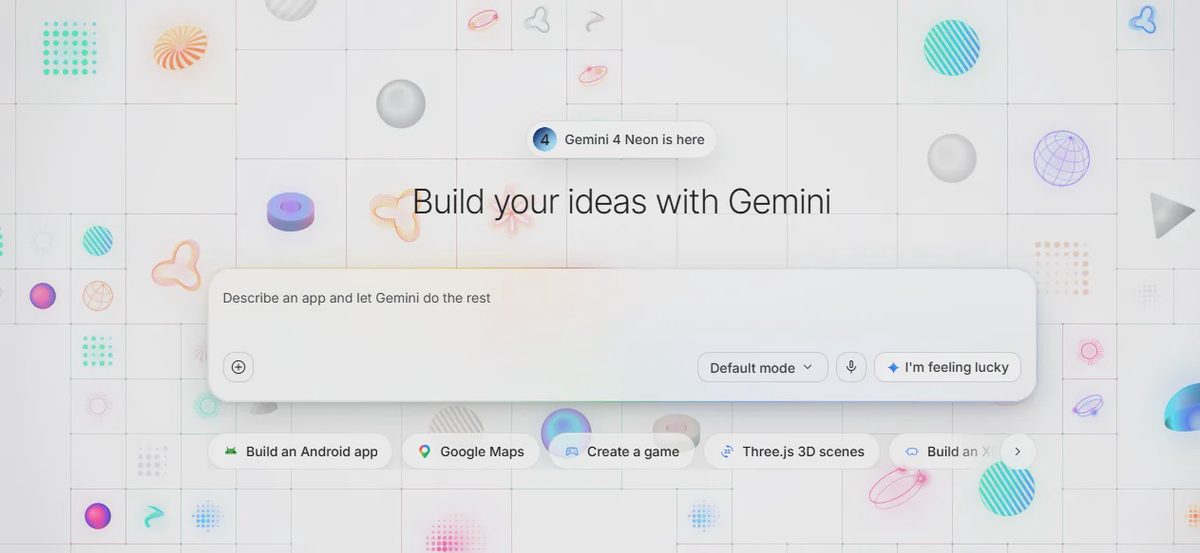
If you want to go beyond the web chat box and use Python scripts to process documents, inspect code, or automate workflows, you can call gemini-4-neon using the official google-genai SDK.
“Here’s the smallest version that works.”
Step 1: Install the SDK and Set Your API Key
Grab an API key from Google AI Studio on a billing-enabled (paid) tier, then install the updated SDK and export your key in your terminal:
Bash
pip install -U google-genai
export GEMINI_API_KEY="your_api_key_here"
Step 2: Run Your First Call in Python
Neon is live with the model ID gemini-4-neon (no preview suffix) and supports generate_content as well as the recommended Interactions API. Here is the smallest working starter snippet:
Python
from google import genai

# Automatically reads GEMINI_API_KEY from your environment
client = genai.Client()

response = client.models.generate_content(
    model="gemini-4-neon",
    contents="Explain API caching in three plain-English sentences and why it helps save money.",
)

print(response.text)
If you want to adjust how deeply it thinks, pass thinking_level (low, medium, high—the default—or xhigh) inside ThinkingConfig (note that temperature, topP, and topK are fixed server-side defaults for Neon, so custom values you pass are typically ignored):
Python
from google import genai
from google.genai import types

client = genai.Client()

response = client.models.generate_content(
    model="gemini-4-neon",
    contents="Check this Python snippet for potential null or out-of-bounds issues and suggest fixes.",
    config=types.GenerateContentConfig(
        thinking_config=types.ThinkingConfig(thinking_level="medium"),
    ),
)

print(response.text)
4. Hands-On Testing & Billing Breakdown: Why “No Free Tier” Deserves a Closer Look
For everyday users and builders alike, the two biggest questions are always: Where can I use it, and what will it cost me?
Where You Can Use It
Everyday & Subscriber Access: Available in the Gemini App (for Google AI Pro and Ultra subscribers under “Deeper analysis / 4 Neon,” alongside 3.1 Pro retiring and Argon being replaced) and Google Antigravity (for paid AI Pro or Ultra subscribers).
Developer & Enterprise Access: Available via the Gemini API in Google AI Studio, Gemini for business / Gemini Enterprise Agent Platform, and GitHub Copilot (for Copilot Pro+, Max, Business, and Enterprise plans across VS Code and Visual Studio). A specialized cybersecurity version is rolling out to eligible defenders through the Fairwind Program.
My Hands-On Testing & Billing Takeaway
While running my first batch of API tests on Gemini 4 Neon, I spent some time staring at the billing console and walked away with a straightforward takeaway for beginners and indie builders: there is no free tier, and every token—including thinking tokens—is billed on a pay-as-you-go basis.
If you’re new to APIs, seeing “no free tier” can make you wonder if it’s going to burn through cash fast. In my own testing and cost comparisons, though, the picture isn’t purely black-and-white:
“Thinking” costs money too: Standard API pricing is $3 per 1M input tokens and $15 per 1M output tokens (including thinking tokens). Neon offers four thinking levels:
low,medium,high(the default), andxhigh(note that in manual web/app model selection, help docs indicate the default can lean towardLowunless adjusted). When I flipped a multi-step task toxhighduring testing, total thinking and output volume jumped noticeably, pushing up both runtime and token spend. For beginners, the rule of thumb is simple: don’t treatxhighlike a casual everyday toggle. Validate your flow on default or lower thinking first, and only turn up the dial when you really need it.No free safety net means smart cost habits matter more: Because every call hits your meter, two built-in discounts make a real difference in practice:
Cached input gets a 95% discount at $0.15 per 1M tokens (note that cache writes default to 1.25x the standard input rate, with longer retention windows costing more). When I repeatedly queried the same long reference context across multiple turns in my tests, cache hits kept that portion of the cost tiny.
Batch and Flex requests are half price at $1.50 per 1M input tokens / $7.50 per 1M output tokens. For overnight batch jobs or offline data cleanup where you don’t need instant results, that’s an easy way to cut costs in half.
How does it stack up against Carbon? Looking at the calendar reveals a clear pricing shift:
Through November 30: Carbon and Argon have promotional pricing at $2 input / $10 output per 1M tokens, so during that window Neon ($3 / $15) looks more expensive on list token rates.
Starting December 1: Once Carbon and Argon return to their standard rates ($4 input / $20 output per 1M tokens), Neon’s standard list price is 25% lower than Carbon’s. Google also notes 36%+ per-task savings at
highcompared to top settings of comparable peers (Artificial Analysis measured Neon at $3.74 per task athigh—24% lower than Carbon athigh—while at the heavyxhighsetting Neon came in at $6.44 vs. Carbonhighat $4.90).
From my own test runs, Neon may not have a free tier, but it feels like a model where early trial runs should be budgeted carefully, while high-value, complex workflows that use caching and batching can deliver strong overall value.
5. Practical Tips for Beginners and Builders
If you’re just starting out with Gemini 4 Neon, keep these three habits in mind to avoid common headaches:
Don’t default straight to
xhigh: Use the default setting for everyday tasks and savexhighfor genuinely tough problems—otherwise both your bill and your wait time will climb fast.Lean on caching and Batch/Flex: Reuse cached context ($0.15 / 1M tokens) when working repeatedly over large materials, and route non-urgent jobs through Batch or Flex to cut token prices in half.
Pick the right model for the job: No single model wins every benchmark. Reach for Hydrogen for quick, cheap everyday speed, Carbon for deep, heavy-lift problem-solving, and keep Neon high on your short list for frequent complex analysis, coding, chart inspection, and research workflows.
“I tried it first. You can just copy.” While it’s fresh, try running a real snippet of code, a chart, or a messy document you already have through the Gemini App, Google AI Studio, or that quick Python script above—at the end of the day, what actually saves you time in practice is what counts.