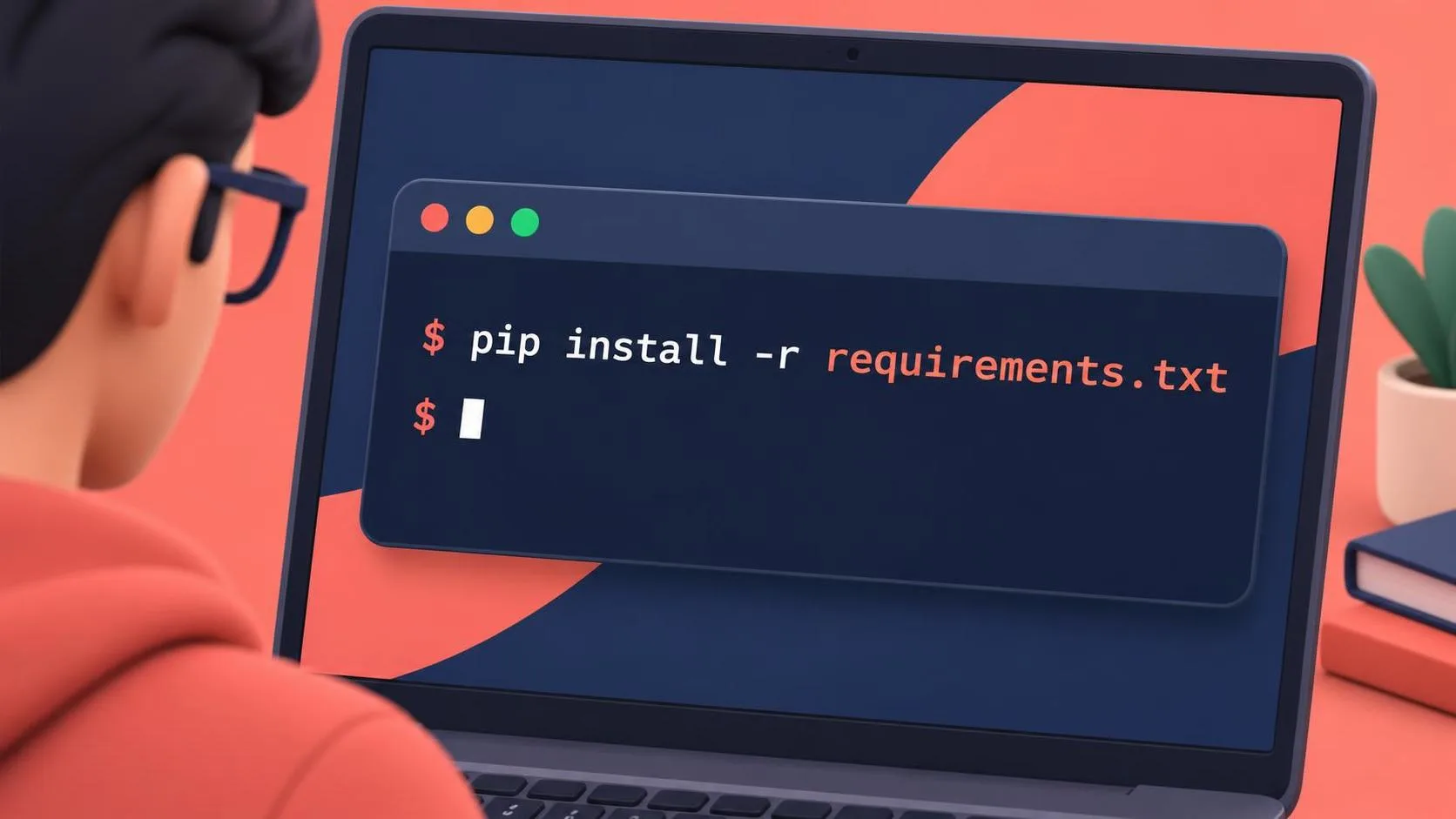
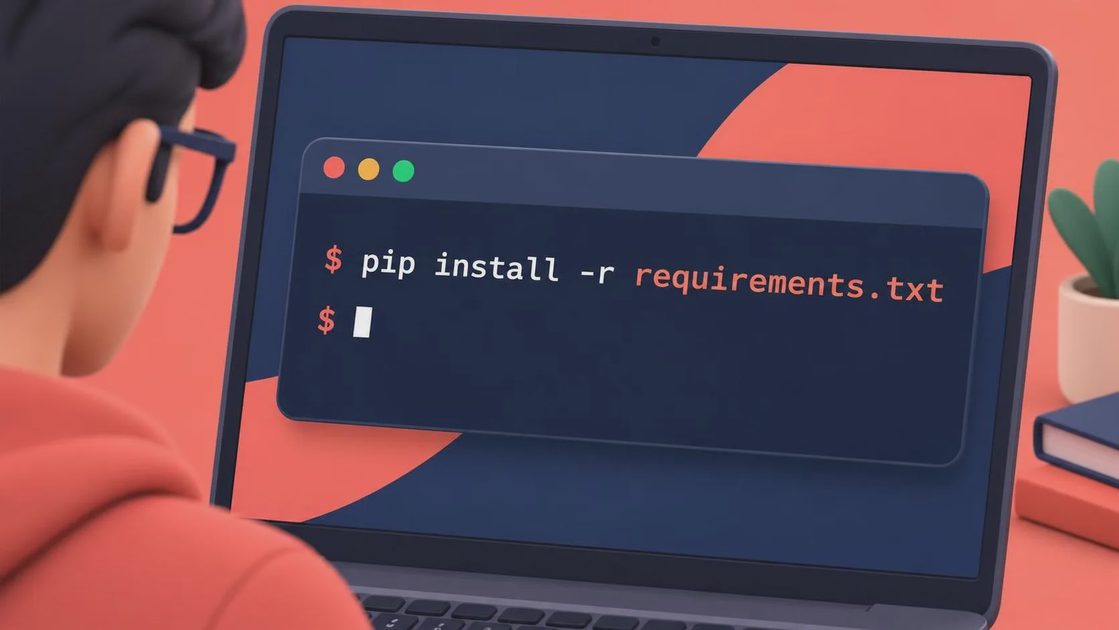
If a Python project includes a file named requirements.txt, pip install -r requirements.txt is usually the fastest way to install its dependencies. I use this command when setting up API experiments, Gemini prototypes, data tools, and automation scripts from a fresh checkout. It reads each dependency listed in the file and asks pip, Python's package installer, to download and install the required versions.
The command looks simple, but the environment around it determines whether it works. A wrong Python interpreter, an old pip version, or a package that needs system libraries can turn a one-line setup into an hour of debugging. Here is the smallest version that works, followed by the failure modes I see most often.
What pip install -r requirements.txt actually does
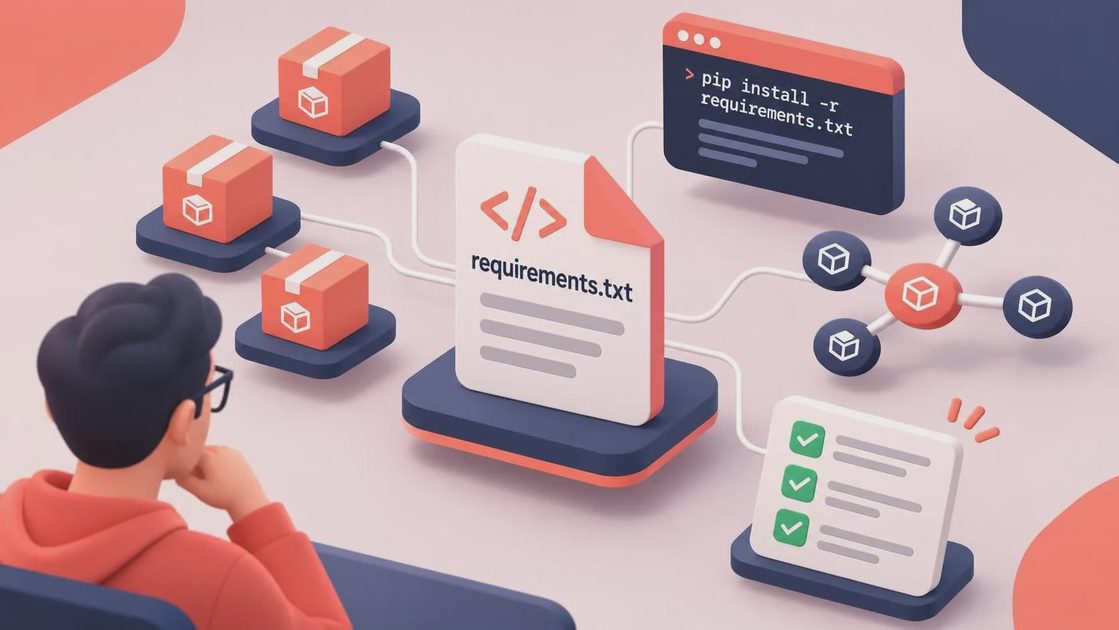
The -r option tells pip to read requirements from a file instead of receiving package names one by one. A basic requirements.txt file might contain requests, google-genai, python-dotenv, and a pinned version such as pydantic==2.9.2. When you run pip install -r requirements.txt, pip processes those lines, resolves compatible dependencies, downloads wheels or source packages, and places them in the active Python environment.
The file can include version operators. For example, requests>=2.31 allows newer compatible releases, while numpy==2.1.1 requests one exact release. It can also contain comments, blank lines, URLs, and references to another requirements file. That flexibility is useful, but it means the file is part of your project's configuration rather than a random list of packages.
Before installing anything, check that Python is available. On macOS and Linux, python3 --version is common. On Windows, py --version often identifies the Python launcher. The safest habit is to create a virtual environment first. A virtual environment keeps project packages separate from system Python and from unrelated experiments.
Create one with python3 -m venv .venv on macOS or Linux, then activate it with source .venv/bin/activate. On Windows PowerShell, use py -m venv .venv followed by .venv\Scripts\Activate.ps1. After activation, upgrade pip with python -m pip install --upgrade pip. Calling pip through the active Python interpreter reduces the chance that pip points to a different installation.
The clean setup workflow I recommend
For a new repository, I follow a repeatable sequence. First, clone the project and change into its directory. Second, inspect requirements.txt before installing it. Look for very old package pins, private Git URLs, local file paths, or comments explaining system prerequisites. Third, create and activate .venv. Fourth, run python -m pip install -r requirements.txt. Finally, run the project's test command or a small import check.
That sequence matters for AI projects. A Gemini application might need the Google Gen AI SDK, an environment variable loaded from a .env file, and a supported Python version. Installing packages successfully does not prove that authentication or model access works. A minimal smoke test should import the main SDK, read configuration without printing secrets, and make a controlled request only if credentials and billing settings are ready.
For a team, commit requirements.txt but do not commit .venv, API keys, or generated caches. A .gitignore entry for .venv/ prevents a large local environment from entering version control. If your application is deployed with Docker, install dependencies during the image build and use a clean base image so local packages do not hide missing requirements.
Common errors and the fixes that work
The most common error is “pip is not recognized” or “command not found.” This usually means pip is not on the shell path, not that the project is broken. Try python -m pip install -r requirements.txt on macOS or Linux, or py -m pip install -r requirements.txt on Windows. If that fails, confirm that Python itself is installed and that your virtual environment is activated.
Another frequent problem is “No matching distribution found.” Check the Python version, operating system, and CPU architecture. A package may not publish a wheel for an older interpreter or a new platform. Read the package's release notes, then try a supported Python version in a fresh virtual environment rather than randomly downgrading several dependencies.
Permission errors usually indicate that pip is trying to write into system Python. Avoid solving this with broad administrator permissions unless you understand the consequences. A virtual environment is cleaner. On a managed work computer, a company security tool or package mirror can also block downloads, so inspect the full error message instead of focusing only on the final line.
Dependency conflicts require more care. If one library requires an older version of another, pip may report incompatible requirements or install a combination that fails later. Start from the project's documented Python version and its lock or constraints file. Do not immediately delete every version pin; those pins may reflect a tested combination.
Requirements files, constraints, and reproducibility
A requirements file can serve two different jobs. Some teams use it as a direct dependency list with broad ranges. Others generate it from a known environment and pin nearly every transitive package. The first style is easier to update, while the second is more predictable for deployment. Neither is automatically correct for every project.
For production services, I prefer separating top-level dependencies from a generated lock-style file when the tooling supports it. A constraints file can limit versions without pretending that every transitive package is a direct dependency. If you update a package, do it deliberately, run tests, and record what changed. Reproducibility is not just getting the install command to finish; it is being able to recreate the same behavior later.
Be careful with package names that resemble standard-library modules or popular projects. A typo can install the wrong package, and a dependency from an unknown source deserves review before use. In an AI application, examine packages that handle authentication, HTTP requests, file uploads, or code execution particularly closely. A successful installation is not a security review.
A practical troubleshooting checklist
When pip install -r requirements.txt fails, capture the Python version, operating system, pip version, and complete error output. Then confirm the working directory with a directory listing and verify that requirements.txt is actually present. Activate the intended virtual environment and run python -m pip --version; its path should point inside .venv rather than to a system directory.
Next, retry with verbose output only when necessary. If a single package fails, install it separately in a temporary environment to isolate the issue, but do not quietly remove it from the project's file. Search the package documentation for supported Python versions and operating-system dependencies. On macOS, compilation may require developer tools. On Linux, a package may need a compiler or development headers. On Windows, a prebuilt wheel can avoid compilation if one exists.
If the environment has become confusing, starting over is often faster than repairing it. Delete .venv, recreate it with the documented Python version, upgrade pip, and run pip install -r requirements.txt again. This is especially useful after switching branches that contain substantially different dependency pins.
What worked, what failed, and what I would change
What worked in my typical clean setup was explicit interpreter selection, a fresh virtual environment, and reading the dependency file before installation. The same approach works for small Gemini scripts and larger services because it makes the Python path visible and keeps experiments isolated.
What failed was treating a green installation as proof that the application was ready. Missing environment variables, unsupported model access, stale package pins, and platform-specific build tools can still stop the first real run. The demo is easy. The edge cases are the real tutorial.
What I would change in production is add automated tests, document the supported Python version, scan dependencies, and use a controlled update process. For a quick local experiment, run pip install -r requirements.txt and move on. For a deployed system, make the environment reproducible, observable, and easy to rebuild. I tried it first. You can just copy.