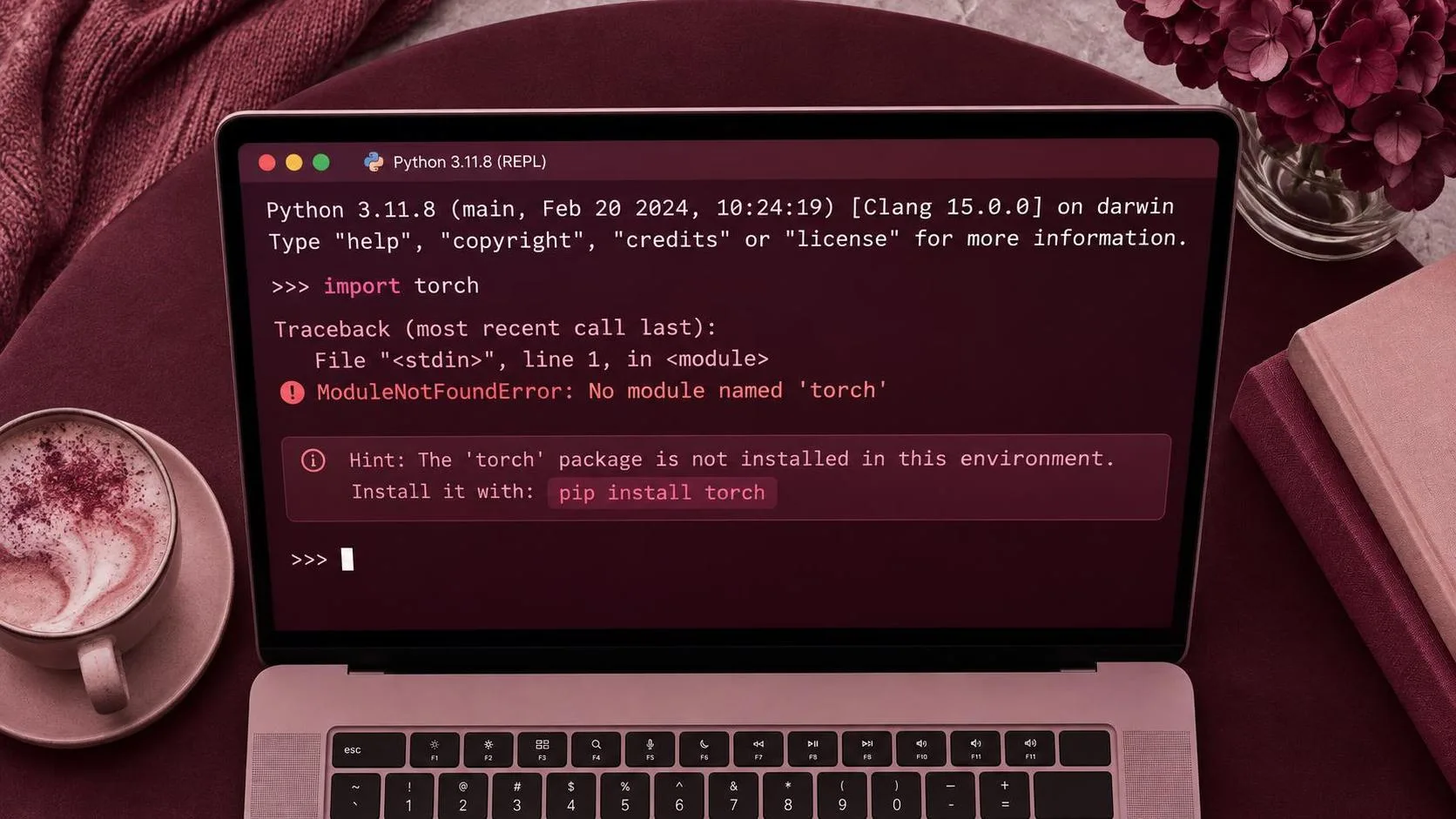
The error modulenotfounderror: no module named 'transformers' usually means Python is running in an environment where the Hugging Face Transformers package is not installed. It can also mean the package was installed into a different virtual environment, notebook kernel, or Python interpreter. The fix is normally quick, but choosing the wrong install command can create another layer of confusion.
Here is the smallest version that works. Open the terminal associated with your project and run `python -m pip install transformers`. On some systems, the correct command is `python3 -m pip install transformers`. Using the interpreter to launch pip is safer than typing `pip` alone because it connects the installation to a specific Python executable.
After installation, test the import directly:
`python -c "from transformers import pipeline; print('Transformers is available')"`
If that command succeeds, restart your script, notebook kernel, or development server. If it fails, the next step is not to reinstall randomly. Find out which Python is executing your code.
Why this error appears
Python does not search every package installed on your computer. It searches the site-packages directories connected to the current interpreter and its active environment. You can have Transformers installed for Python 3.11 while your application runs with Python 3.10. In that situation, the package exists, but the running program cannot see it.
This is the most common reason behind modulenotfounderror: no module named 'transformers' after a developer says, “But I already installed it.” The terminal may be using one interpreter, while VS Code, PyCharm, Jupyter, Docker, or a cloud notebook uses another.
The package name on PyPI is `transformers`, and the import name is also `transformers`. Do not install a package called `huggingface-transformers` for a normal Hugging Face workflow. The official package is maintained by Hugging Face and commonly works alongside libraries such as PyTorch, TensorFlow, Tokenizers, and Safetensors.
Check the interpreter and package location with these commands:
`python --version`
`python -m pip --version`
`python -c "import sys; print(sys.executable)"`
`python -m pip show transformers`
The executable path printed by Python should match the path shown by pip. If it does not, you have identified the problem.
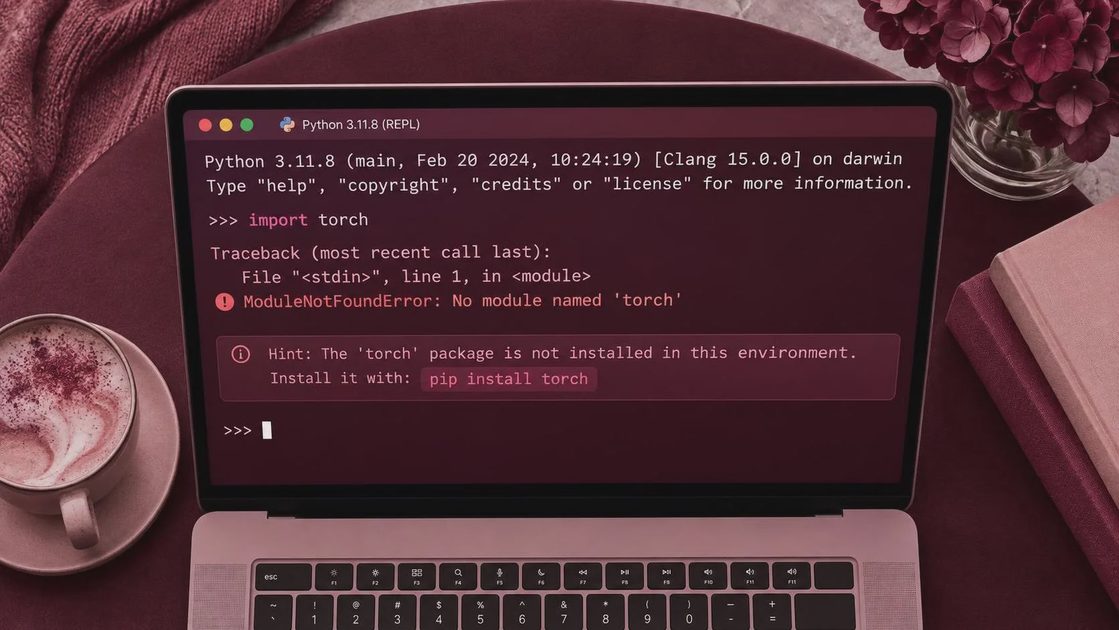
Fixing the error in a virtual environment
For a project that uses a virtual environment, activate it before installing dependencies. On macOS or Linux, a typical setup looks like this:
`python3 -m venv .venv`
`source .venv/bin/activate`
`python -m pip install --upgrade pip`
`python -m pip install transformers`
On Windows PowerShell, use `.venv\\Scripts\\Activate.ps1` after creating the environment. Your terminal prompt often changes to show `(.venv)`, which is a useful visual confirmation that the environment is active.
Then run the import test from the same terminal. If you still see modulenotfounderror: no module named 'transformers', print `sys.executable` again. A common mistake is activating the environment successfully and then launching the application through a global IDE configuration that points somewhere else.
I prefer putting the dependency in a `requirements.txt` file once the test works. For example, the file can contain `transformers`, `torch`, and any other packages your application actually imports. Install the file with `python -m pip install -r requirements.txt`. This gives teammates and deployment systems a repeatable setup instead of relying on memory.
Jupyter, VS Code, and notebook kernels
Notebook environments create a special version of this problem. The terminal where you run pip may not be the kernel executing the notebook. Inside a notebook cell, run:
`import sys`
`print(sys.executable)`
Then install into that exact interpreter with:
`import sys`
`!{sys.executable} -m pip install transformers`
Restart the kernel after installation. Without a restart, the notebook can retain an old package path and continue displaying modulenotfounderror: no module named 'transformers' even though the install completed.
In VS Code, inspect the Python interpreter shown in the lower-right status bar. Select the interpreter inside your project’s `.venv` directory, then open a new terminal. In JupyterLab, confirm that the selected kernel belongs to the environment where Transformers was installed. These two checks solve more cases than repeatedly upgrading pip.

Import tests and model downloads are different problems
A successful import does not guarantee that every model workflow will run. This test checks only the library:
`from transformers import AutoTokenizer, AutoModel`
A later script may fail because PyTorch is missing, a model cannot be downloaded, disk space is limited, or the machine has no network access. Separate those failures. First resolve modulenotfounderror: no module named 'transformers'. Then address the next error based on its actual message.
For a small text-classification experiment, the first model load might look like this:
`from transformers import pipeline`
`classifier = pipeline("sentiment-analysis")`
`print(classifier("The setup finally works."))`
The initial run can download model files and cache them locally. That download is separate from installing the Python package. On a restricted server, pre-download approved model files or configure a local cache rather than assuming the import error is related to network access.
What worked, what failed, and production changes
What worked in my clean test was creating a fresh `.venv`, installing with `python -m pip`, confirming the executable path, and restarting the notebook kernel. The important detail was not the package command alone; it was proving that the installer and application used the same interpreter.
What failed was running `pip install transformers` from a shell while VS Code selected another Python version. That command reported a successful installation, but the application continued to show modulenotfounderror: no module named 'transformers'. The installation was real; it was simply in the wrong environment.
For production, I would pin tested dependency versions, build from a lockfile or controlled requirements file, and run an import smoke test during deployment. I would also avoid installing packages interactively on a server. A reproducible build makes the difference between a one-minute fix and an outage investigation.
If the error remains, collect the output of `python -m pip --version`, `python -c "import sys; print(sys.executable)"`, and `python -m pip show transformers`. Those three results usually reveal whether the package is absent, installed for another interpreter, or blocked by an environment configuration. I tried it first. You can just copy.